
You join the cafe Wi-Fi, the icon fills to three solid bars, and then every page just spins. Mail will not fetch, the browser hangs, and your Mac insists it is connected. The frustrating part is that it is telling the truth, in its own narrow way. It reached the Wi-Fi. It never promised the internet.
Here is what the bars actually measure, a quick way to find out what is blocking you, and what you can and cannot do about each cause.
What "connected" really means
Joining Wi-Fi and being online feel like one event because at home they happen together. They are two separate things. First your Mac associates with the router, which is the part the bars measure. Second, that router decides whether to pass your traffic along to the rest of the internet.
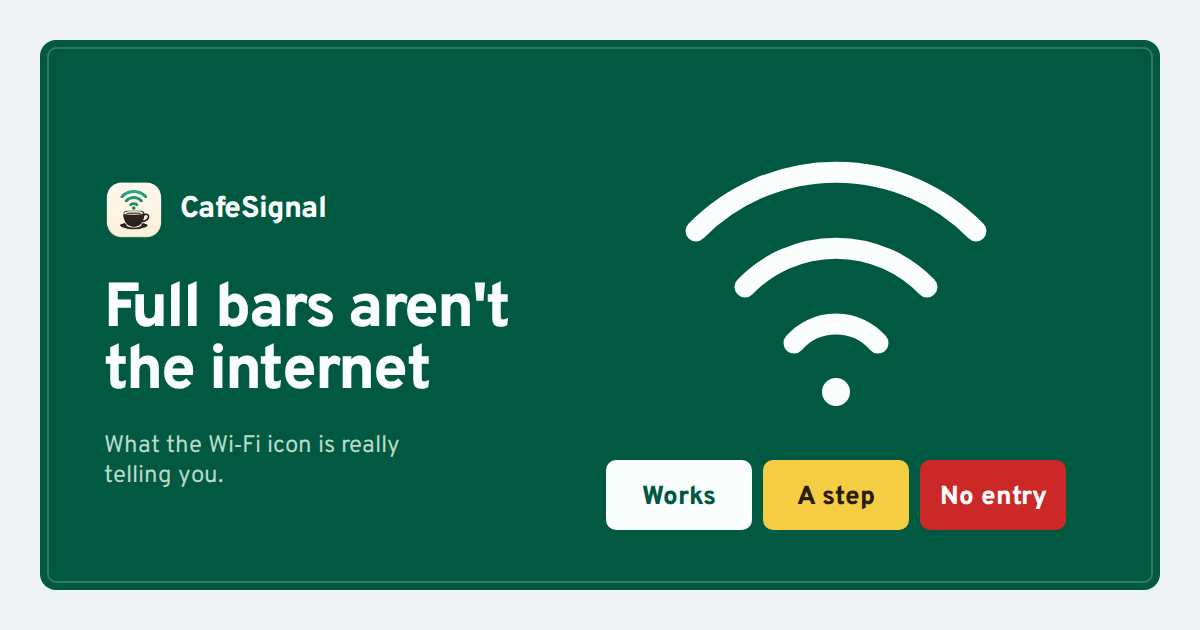
The bars measure the link to the router. They say nothing about whether a request ever leaves the building.
On a cafe or guest network the second step often does not go your way, so you get the odd state of a strong, confident Wi-Fi icon sitting on top of a connection that does nothing.
What joining the Wi-Fi gives you
- A link to the router, which is what the bars show
- A local address on the cafe's network
- Access to the sign-in page, if there is one
What it does not give you
- A promise that traffic reaches the internet
- A finished sign-in, if the network needs one
- Any say over how fast or filtered the line is
Find the cause in under a minute
Before you restart anything, work out which of the three it is. The check takes less time than toggling Wi-Fi off and on.
-
1 01
Open a plain http page
In the browser, go to
http://neverssl.com. Because it loads over http, the router is free to redirect it, so a hidden sign-in page will jump out here. -
2 02
Read what happens
A sign-in page means a captive portal is in the way. A spinner that never resolves means the line behind the router is down. An instant load means you are already online and the first site was just cached or slow.
-
3 03
Act on the answer
Finish the sign-in, move to another network, or reload the page you actually wanted. One of the three clears it almost every time.
Cause one: a sign-in page is holding you
This is the usual one. The network reached you, but it is parking every request at a web page until you enter a name, tick a box, or agree to the terms. That page is a captive portal, and macOS normally pops a small "Log In" window for it. When that window half-loads or you close it too soon, you land exactly here: connected, no internet.
Sign in to use the Wi‑Fi
Finish the page and wait for it to confirm before you close anything. The network needs a moment to mark your Mac as allowed, and closing early sends you back to the start.
Cause two: the line behind the router is dead
Sometimes the cafe's own internet is down, or their provider is having a bad morning. Your Mac still reaches the router, so the bars stay full, but nothing the router is meant to forward actually goes anywhere. No sign-in page appears at http://neverssl.com, and the spinner just keeps turning.
There is no Mac-side fix for this, because nothing is wrong on your Mac. Ask the staff, or move to your phone's hotspot.
Cause three: your Mac is holding an old lease
Less often, your Mac reconnects to a network it used before and reuses stale settings that no longer fit, so it reaches the router but cannot route anything out. This is the one case where restarting the connection helps.
- In the menu bar, turn Wi-Fi off, wait a few seconds, and turn it back on.
- If that fails, open System Settings, go to Network, select the Wi-Fi network and choose to forget it, then join again fresh.
When to stop trying
Some networks were never going to let you work, and recognising them saves you the most time of all.
A paid hotel network, a members-only line and an enterprise login all live on the far side of that line. No app should pretend otherwise, and getting past a control you were not given is a different thing from signing in to guest Wi-Fi you are welcome to use.
Where CafeSignal fits
CafeSignal is built for cause one, the routine sign-in page, and nothing past it. It is a free app that lives in your Mac's menu bar. You still join the Wi-Fi you want, the normal way. When a sign-in page stands in front of the internet, CafeSignal fills in the routine parts for you: a visitor name, a birth year if the page asks, the box that accepts the terms, and the Connect button when the step is simple. Then it checks that a real request reaches the internet before it tells you that you are online, so you are not fooled by full bars again.
It stops where the locks begin. It never solves CAPTCHAs, never types passwords, one-time codes, payments, vouchers or account details, and never uses Facebook, Google or Zalo logins. It also leaves the network you chose alone, with no scanning, ranking or switching. It waits for the sign-in page, deals with it, and otherwise stays quiet.
CafeSignal is free, needs macOS 14 or later, and runs on both Apple silicon and Intel Macs. If a sign-in page ever trips it up, there is a Send Feedback button in the menu, and a person reads every message.